When upgrading to
macOS Sierra 10.12 you will
encounter an Opt Out decision.
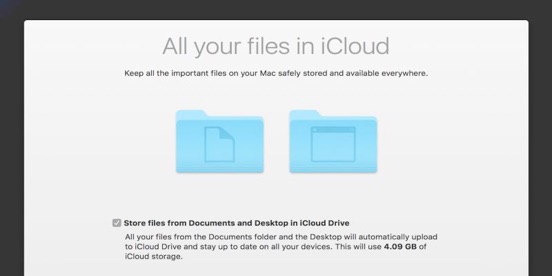
A screen entitled
“All your files in iCloud”
includes a checkbox
“Store files from Documents
and Desktop in iCloud Drive”
which is checked by default.
What Apple proposes is that you
store all the contents of your
Desktop and Documents folders
in your Apple ID iCloud account.
If you do not uncheck this box, this will occur.
My Desktop contains 3.5 GB of data.
My Documents folder contains 300 GB of data.
i am already using 70 GB of iCloud storage for iCloud Photo Library
and iPhone backups.
Apple offers 5 GB of free storage in your iCloud account.
Were i to enable this feature i would need more than 375 GB of iCloud storage.
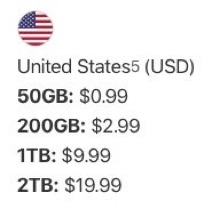
That would put me in the 1TB storage plan for $9.99 per month.
No thank you.
If you do enable Documents and Desktop storage in your iCloud Drive
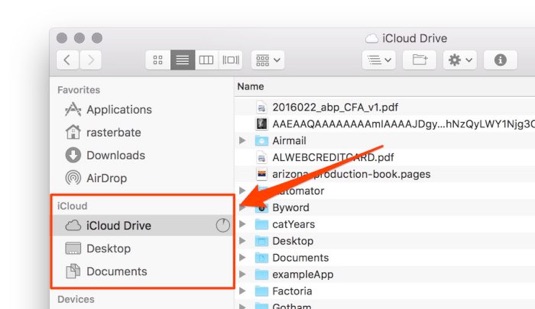
the Desktop and Documents folders of your Home folder are removed.
They appear in the sidebar of your Finder windows under a category of iCloud.
This means that your Desktop and Documents folders are now in
your iCloud account.
At first i was concerned that with this feature Desktop and Documents
contents resided only in iCloud Drive.
If this were true, Time Machine backup would not be able to
back up these folders.
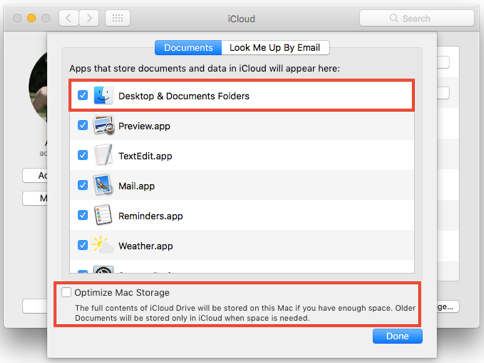
If you opt to “Optimize Mac Storage” in
System Preferences > iCloud > iCloud Drive > Options > Documents,
then older documents will be stored only in iCloud when space is needed.
This would mean that Time Machine would not back them up.
Presumably, older files have already been backed up and can be found
in the Time Machine backup history.
i would choose to not Optimize since some documents might
fall through these backup cracks.
“All your files in iCloud” works like Dropbox.
Desktop and Documents folders are created in
/Users/yourHomeFolder/Library/Mobile Documents/iCloud Drive.
Contents of these folders are synchronized between the Mac and iCloud.
Full copies of these documents are stored on the Mac and in iCloud.
Time Machine does back up these Library folders.
Suppose you wanted to recover a deleted Desktop file using Time Machine.
If you try to navigate to
/Users/yourHomeFolder/Library/Mobile Documents/iCloud Drive
you will not be able to see the Library folder. It is invisible.
OOPs…
Luckily, there is a terminal command which makes invisible folders visible:
defaults write com.apple.finder AppleShowAllFiles TRUE;killall Finder
To make the files invisible again:
defaults write com.apple.finder AppleShowAllFiles FALSE;killall Finder
Be careful mucking around in the terminal - you are your own worst enemy.
i do not need to synchronize my Desktop and Documents folders
with other Macs.
i have plenty of space on my iMac boot drive and i don’t need all my
documents on my Macbook Pro laptop.
i do a Time Machine backup and subscribe to Backblaze off site backup.
Thus, my documents are always in three places,
one of which is remote from my computer.
iCloud Drive Documents and Desktop feature
is not for me.
You may want this feature if:
-
-You have multiple computers on which you always
want to have all the same Documents synchronized.
- Your laptop has a limited amount of storage.
- You don’t have an off site backup.
Otherwise, you might want to revert to local storage of
your Desktop and Documents folders.
While this is possible, i will not explain the process here.
Best you call a consultant to help you revert.
i would hate to see you lose your data.
Opt Out iCloud Drive
Saturday, February 25, 2017

weekly hint and rant #421

714-728-3224
949-734-0056


Click here for this week’s music.