


Episode #891
February 28, 2025
Tired of ads on web pages?
Want to just read the article?
Try Reader Mode.
All the popular web browsers have a reader mode. This converts ad-ridden pages to clean, readable text. Some browsers keep embedded photos and graphics. Others just strip the page down to the text.
On the Mac, there are Safari, Firefox, Chrome, and Edge internet browsers. On Windows, there is no longer a Safari browser available. All of these browsers have a Reader mode.
I use Safari on the Mac for all my browsing. Safari Reader is especially useful on news article pages that are inundated and surrounded by advertisements. Rather than being distracted by clickbait, I enable Reader mode. To the left of the URL in the address bar is a small icon that looks like a monitor screen with two lines of text below it. Click on that icon.

A pop-down menu features a large blue button that says: “Show Reader.” When clicked, the web page is converted to a clean title, embedded graphics, and the text of the article, complete with links. No ads.
BEFORE:
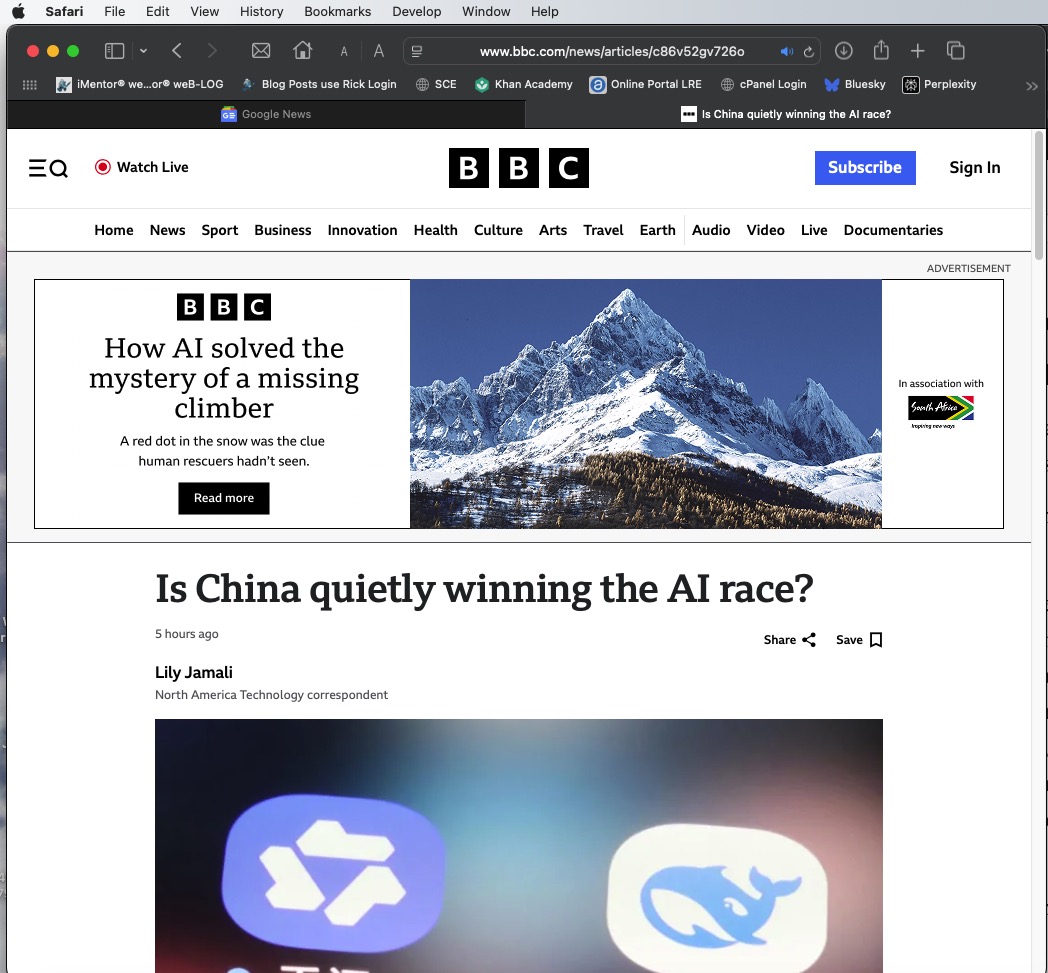
AFTER:

To return to the normal advertisements, just click again on the Reader icon in the address bar and select “Hide Reader.” Reader mode works just as well in Safari on the iPhone. The reader icon to the left of the URL is 2A‘s in iPhone Safari.
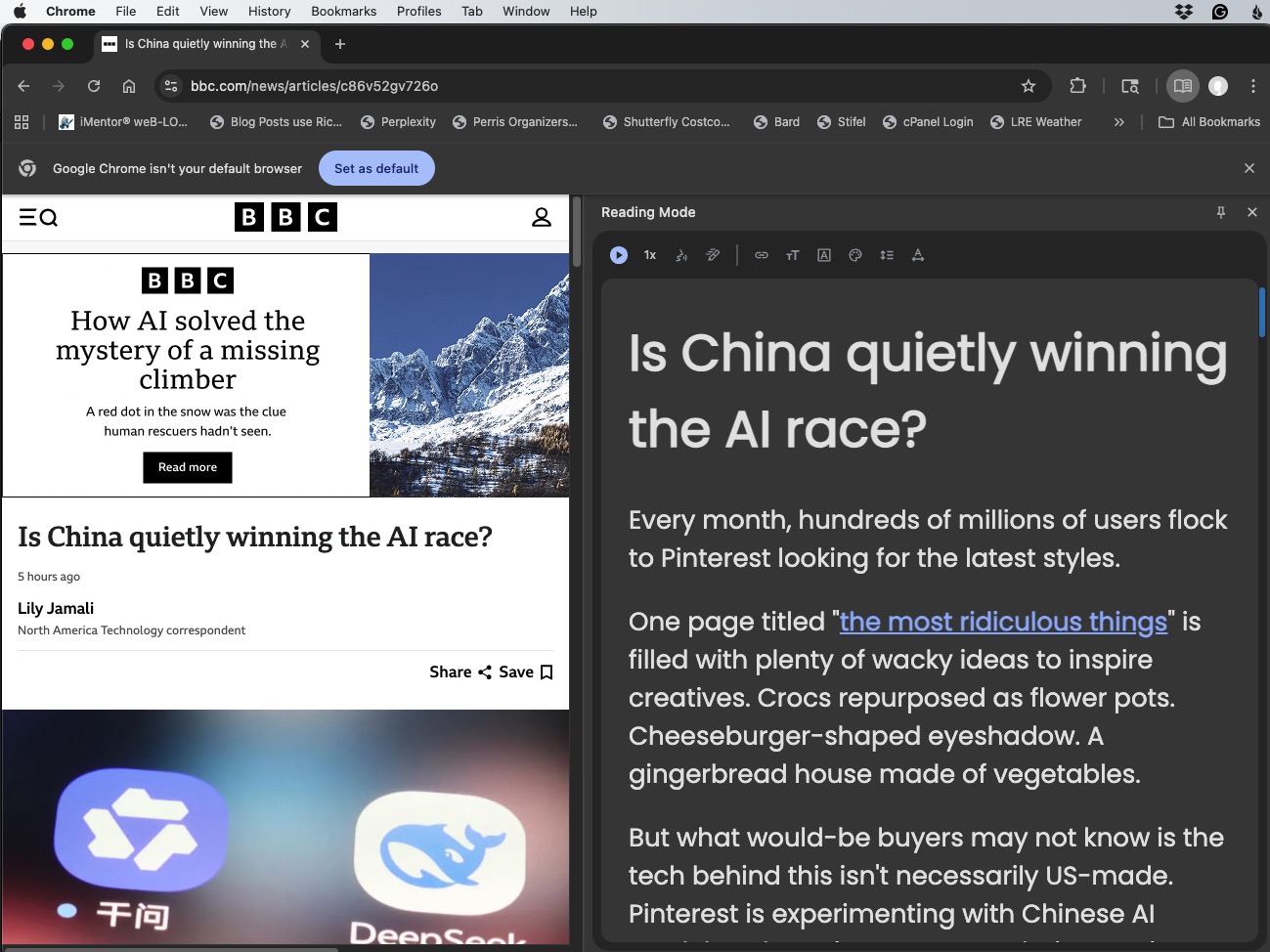
Chrome is a popular cross-platform browser. Its Reader mode is minimal. Rather than converting the entire web page to readable text, Chrome adds a sidebar with the text in it. The command to turn on Reading Mode is hidden and difficult to find. It is in the upper right hamburger menu > More Tools > Reading Mode.
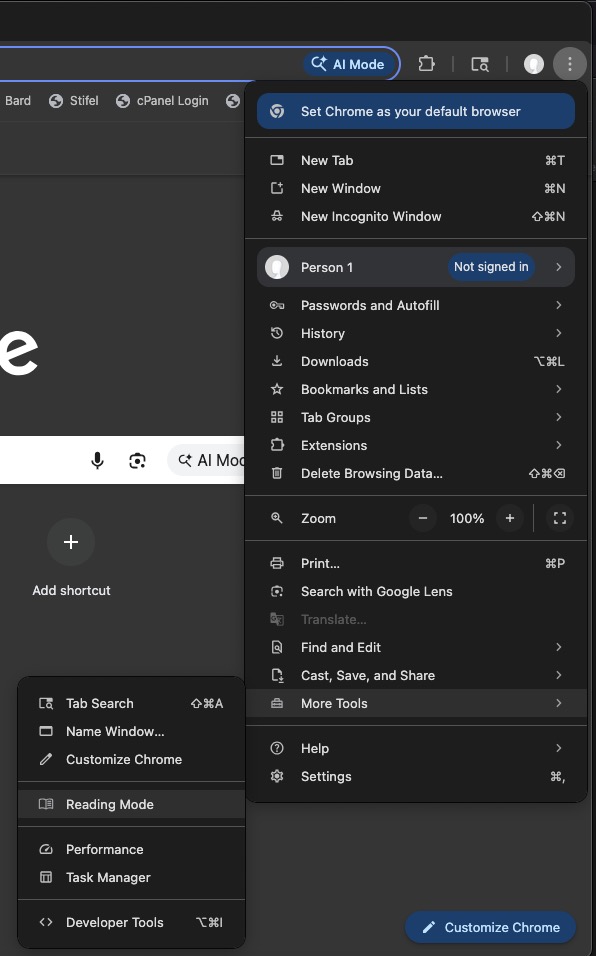
Sometimes you have to highlight what you want to read before invoking Reading Mode. The Reading sidebar shows only text with no illustrations. The sidebar is sizable, but the whole process feels like a lot of work for very little.
The good news is that Chrome has extensions like Mercury Reader, Just Read, and Reader View that make the experience more like Safari. To use extensions, however, you have to roll up your sleeves and get under the hood to configure Chrome.
Edge browser comes with Windows and is available for the Mac. Its Immersive Reader is a Swiss Army Knife of reading features. The Open Immersive Reader command is inside an ellipsis at the right edge of the address bar. Its close icon is displayed in the address bar in the form of a book icon. Immersive Reader is as clean as Safari, eliminating advertisements and displaying text with embedded graphics.

For the power reader, Immersive Reader adds line focus, syllable splitting, parts-of-speech highlighting, picture dictionary, built-in translation, integrated read-aloud with voice and speed control, advanced text spacing and column controls, and immersive reading for PDFs. I especially like the read-aloud feature.
Firefox browser has a Reader View button at the right end of the address bar. Its display is as clean as Safari or Edge and even has some advanced reading tools like adjustable font family and size, line height and text width controls, light/dark/sepia themes, and built-in read-aloud with voice and speed control.

Firefox does not have grammar, translation, or learning aids, such as Edge. Firefox Reader is identical on the Mac and in Windows, so if you bounce between a Mac at home and a PC at work, your reading workflow won’t be different.
Safari Reader is best for Apple users who want a clean, elegant reading experience with minimal setup. Chrome’s reader is ideal for simplicity and consistency across platforms, with reliable text cleanup but few extras. Edge’s Immersive Reader is the most powerful, offering read-aloud, translation, focus tools, grammar aids, and PDF support. Firefox Reader View strikes a balance with strong typography control, built-in narration, and privacy-first design without the heavier learning features of Edge.
All of these readers accomplish the same thing. They give the reader an uncluttered experience without those obnoxious distractions, ads, and clickbait. Internet marketing executives must hate browser reader features. I, however, enjoy my Internet reading experience better in a Reader Mode.
IF YOU LIKE THIS BLOG YOU’LL LOVE MY BOOKS:
“Skydivers Know Why Birds Sing” by Ricki T Thues is now available on Amazon.
It is a Love story of Rick and Paula Thues and their 35 years of Skydiving.
Click HERE to buy the paperback or Kindle ebook at Amazon.
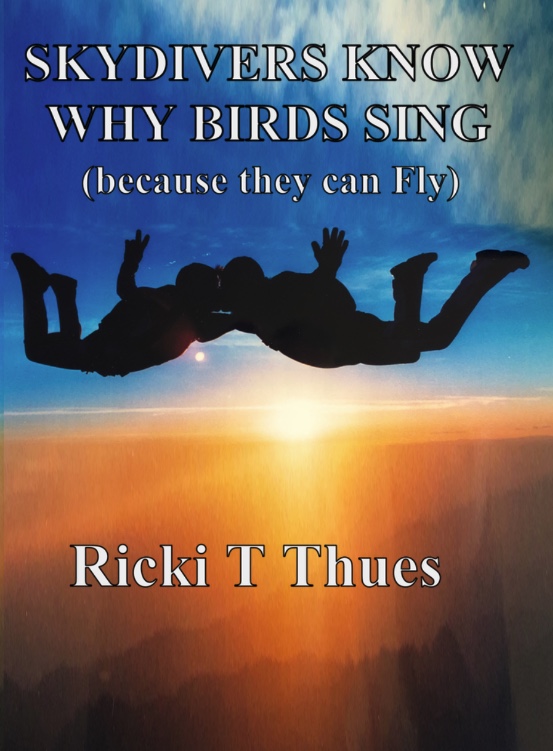
Follow Ricki T Thues on Amazon HERE.
ALSO AVAILABLE:
“Technically Human” by Ricki T Thues, the iMentor, is available on Amazon.
It is a compilation of selected episodes from this bLog which tell the story of Humanity through the eyes of the iMentor.
Click HERE to buy the paperback or Kindle ebook at Amazon.
The ebook version of “Technically Human” is also available on Kobo. Click HERE.
For you Barnes and Noble Nook readers it is available for Nook. Click HERE.
The “Technically Human” ebook is also available on Apple Books . Click HERE.




This is awesome to know, thank you!! I always thought the only way to get rid of the ads was to pay a special subscription (like youtube) and I am cheap, haha…